
 Tips & Tricks for CD-Menu Creator
Tip: How to create multiple menus on a CD or DVD
Sometimes one menu window is not enough. The tips below show how
to create a menu system that contains more than one menu (one main
menu and two or three levels of sub menus).
Different techniques are used whether you want to create a menu
system with two levels of menus or if you want to create a menu
system with three levels of menus or more. Choose one of the links
below:
Multiple menus - Two levels of menus
This tip shows how to create a menu system that contains one
main menu and two sub menus (as shown in the picture below).
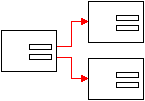
 How to create multiple menus on
a CD or DVD - Two levels
How to create multiple menus on
a CD or DVD - Two levels
Multiple menus - Three levels of menus
This tip shows how to create a menu system that contains one
main menu and two sub menus at level two and two sub menus at level
three (as shown in the picture below).
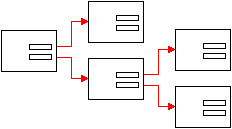
How to create multiple menus on
a CD or DVD - Three levels
| Although the tips above cover multiple menu systems on CDs or DVDs in first place, the tips are also valid for multiple menu systems on USB flash drives. The methods are very similar. |
Copyright © by SamLogic. All rights reserved.