The "Newsletter"
tab
 How
do I insert images into my e-mail? How
do I insert images into my e-mail?
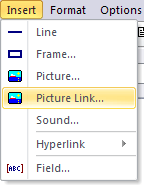
You can insert images in two different ways. One method is to insert
the image directly in the e-mail by using the Insert - Picture
menu option. Another method is to insert a link (URL) to a picture
on the Internet via the Insert - Picture Link menu option.
If you use the second method the image will not be included in the
outgoing e-mail message, instead it will be downloaded at the moment
the receiver opens the e-mail. One big advantage using this method
is that every e-mail will be sent out much faster. Another advantage
is that the receivers can start reading the e-mail before all images
have been downloaded. This is good if he/she has a slow Internet
connection.
How
do I attach a PDF document to my e-mail?
In the bottom of the Newsletter tab there is a
text box
with the name Attachment. To the right of the text box there is a button
with a plus sign (+). If you press this button a dialog box is opened
and via this dialog box you can select a file that you want to
attach to the e-mail message. If you want to remove the attached
file you can press the button with a minus sign (-).
How
do I add sound or music to my e-mail message?
To add sound or music to your e-mail message you can choose the
Insert - Sound menu option. You can add WAVE-, MIDI- and
MP3-files to your messages. We recommend you to insert sound as
the very last action. Include it in the e-mail message when everything
else is done, because a sound tag is invisible and can be tricky
to edit without opening the HTML source.
I want
the user to be able to click on a word in my newsletter and be
redirected to a page on the Internet. How to do?
Select the word in the
newsletter you want to add a link to, and choose the Insert - Hyperlink
- URL menu item. In the dialog box
that is opened, enter or paste an exact Internet address (URL) to the web
page, including the protocol "http://". When you close the dialog box the word will be underlined,
and when the receiver of your e-mail clicks on the word the specified
web page will be opened in a web browser.
I want
to open the users e-mail client with my e-mail address automatically
inserted, when he/she clicks on a link in the letter. How is it
done?
Select the word in the
newsletter you want to link to your e-mail address,
and choose the Insert - Hyperlink - E-mail Address menu item. Enter the
e-mail address you want to be used as a recipient in the
E-Mail Address textbox. If you want a subject line to be
automatically pre-filled in the user's e-mail client you can
enter the text in the Subject text box. When
you close the dialog box the word will be underlined, and when the
receiver of your e-mail clicks on this word, the receiver's
e-mail
client will be opened with your e-mail address as the recipient.
To the top
The "Mailing
List" tab and the Import/Export functions
Can I find and remove
duplicates in my
mailing list?
Yes, you can. You can have all
duplicate e-mail addresses
in the mailing list selected by choosing the Edit - Select
Duplicates menu item or by pressing the F8 key.
Thereafter you can press the Delete button on your
keyboard to remove all duplicates. MultiMailer will not select
the first occurance of a contact / e-mail address in a group
with duplicates; that's why you can delete duplicates in this
smooth way.
Is it possible to search for a phone number in
the mailing list?
Yes, you can search in every
data field in the mailing list. To open
the search dialog box in MultiMailer, choose the Edit - Find
menu item.
Can I categorize contacts in the mailing
list in different groups?
Yes, you can categorize every individual contact or group of contacts
in your mailing list. Right click on an item or select several items
at the time and then choose Set Category - Set Category
in the Edit
menu.
How do I send messages only to a few recipients
in the list?
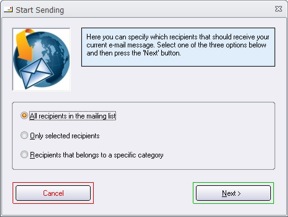 Before you start the delivery of your e-mail messages
to your contacts, you can choose
if every contact in your mailing list should receive your message
or just some of them. This is managed in the Start Sending dialog box,
that is opened via the Mailing menu. There you can choose
one the following three options: Before you start the delivery of your e-mail messages
to your contacts, you can choose
if every contact in your mailing list should receive your message
or just some of them. This is managed in the Start Sending dialog box,
that is opened via the Mailing menu. There you can choose
one the following three options:
All recipients in the mailing list:
Every contact
in the mailing list will get your e-mail message.
Only selected recipients:
Only selected contacts will
get your e-mail message. You can select several items in the list
by using the CTRL key and the left mouse button.
Recipients in the specified category:
Only recipients
within a specified category will get your e-mail message.
Can
MultiMailer handle several mailing lists?
Yes, you can create an unlimited number of mailing lists with MultiMailer.
This has advantages if you for example have a large client’s database
with a lot of addresses and want to categorize them in smaller groups
that are easier to handle. You can create a new mailing list by
choosing the File - New - Mailing List menu item.
Can MultiMailer import contact information from other software?
Yes it can. Instead of entering same data manually you can import
the data from other programs where they are originally stored.
MultiMailer can import data from many data sources, for example
from Microsoft Outlook, Microsoft Excel and
Microsoft Access. MultiMailer
can also import data from CRM systems and from SQL databases.
How do I import data from Microsoft Excel in
the best possible way?
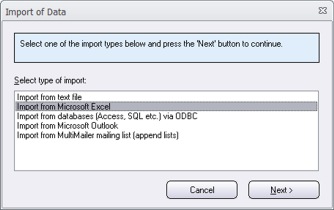 MultiMailer
can import data from Microsoft Excel in many ways. The simplest
method is to make a direct import from a Microsoft Excel sheet
file by choosing the menu item File - Import & Export -
Import to Mailing List and selecting the Import from
Microsoft Excel option in list that is shown. An import
wizard in two steps is shown, and in the first step you choose
an Excel file and in the second step you select the data fields
to import. You can read more about import from Excel files
on this page. MultiMailer
can import data from Microsoft Excel in many ways. The simplest
method is to make a direct import from a Microsoft Excel sheet
file by choosing the menu item File - Import & Export -
Import to Mailing List and selecting the Import from
Microsoft Excel option in list that is shown. An import
wizard in two steps is shown, and in the first step you choose
an Excel file and in the second step you select the data fields
to import. You can read more about import from Excel files
on this page.
If you need to import large amounts of data you can choose
import via ODBC instead. This
will make the import faster, but if you don't have so many
contacts to import, it is better to import data directly from
Excel as described above.
Is
it possible to import data to MultiMailer from an UNIX environment?
Yes, MultiMailer can import
data from a UNIX system. You can use the ODBC method, or export
the data to a text file in the UNIX system and then import the
data in the text file to MultiMailer.
To the top
The "Sent
Messages" and "Statistics" tabs
Can I see which contacts
that will
not get an e-mail because of errors?
Yes, when the e-mail delivery is finished you can sort the column
Status (click on the header of this column) in the Sent
Messages tab and you will get all e-mail addresses that get
an error message gathered.
Is it possible to see who have received my earlier
e-mail messages?
Yes, you can see who got your earlier e-mails by opening the
Statistics tab and then right click on the particular
mailing and choosing Show Log File in the local menu. A
log file will then be shown, where you will find
detailed information about your earlier mail deliveries, including
e-mail addresses of the receivers.
Is
information about errors and invalid e-mail addresses saved
when doing an e-mail delivery?
Yes, the log file stores information about every e-mail that is
sent and you can also read error codes and error messages here and
se what went wrong.
Is
it possible to export the log file to other databases?
Yes, it's possible. To create
a log file that is importable in other programs you must check
the Create an importable tab delimited
log file option in the Options - Options dialog box
(the Log tab).
Can I see who opens
my e-mails?
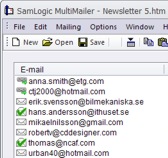
Yes, if you have the
Professional version of MultiMailer. Then you can see who opens
your e-mails, and also see who clicks on links in your e-mails
and which links they click on. You can read more about these
features in MultiMailer
on this page.
To the top
E-mail
Account Settings
Where in MultiMailer do I
enter e-mail account settings?
If you choose the Options -
E-Mail Account Settings
menu item, a dialog box will be opened where you can enter
e-mail account settings (including server name, username and
password). More information is available
on this page.
Can I have a different sender
e-mail address than the one I log on to my e-mail server?
Yes, you can. In the E-Mail
Account Settings dialog box you
can enter different e-mail addresses in the E-mail address
and E-mail address (login) text boxes. Only the e-mail
address specified in E-mail address text box will be shown for the receiver of your
e-mails in his/her e-mail client application.
Can
I have a different reply e-mail address than the sender e-mail address?
Yes, you can. In the E-Mail
Account Settings dialog box you can enter a different reply
address in the Reply Address text box. If a reader
replies your e-mail, this e-mail address will be used.
|







 FAQ
- Usability and Functionality - Specific Functions
FAQ
- Usability and Functionality - Specific Functions
