|








 Using AutoRun / AutoPlay with a USB Flash Drive in Windows 7 The AutoRun technology in Windows has been used since Windows 95 to automatically start a program, for example a menu or a setup program, when a user inserts a removable mass storage media (like a CD) into the computer. Originally, the AutoRun technology was mostly used for CDs and DVDs, but in later years this technology has also been used to easily launch a program on a USB flash drive (USB stick). When AutoRun is used together with a USB flash drive another technology named AutoPlay is also involved. AutoPlay was introduced with Windows XP and is used to give the user a list of actions (options) that the user can choose among to handle the contents of the media. A general article that explains how AutoRun and AutoPlay co-works when using with USB flash drives is available on our website: Using AutoRun with a USB Flash Drive. Below we will explain some major changes to the AutoRun and AutoPlay technologies that was implemented in the Windows 7 operating system. Advertisement 
AutoRun and AutoPlay behavior in Windows XP and Windows Vista When using AutoRun together with AutoPlay on a USB flash drive in Windows XP and Windows Vista, an action (option) to start the program is added to the AutoPlay (dialog box) action list. By pressing Enter or clicking OK the program on the USB flash drive will be run. This is not a full automatic solution as with a CD or DVD, but it is almost. The program is only a mouse click or key press away. Because of this, using AutoRun with USB sticks has become very popular. Windows 7 - reduced support for AutoRun when using with a USB flash drive  In
Windows 7 things works very differently. The support for AutoRun has
been considerably reduced for USB flash drives and other non-optical
removable media. There is no way to start a program
automatically or add a program to the AutoPlay action list if the media
type is a USB flash drive or a non-optical removable media. For an
optical media as CD or DVD the support is still as before, but the
support for a USB drives is now very limited. Actually, the only things
you can do, when using the AutoRun technology, is to change the drive
label or change the icon (these changes will be shown in AutoPlay dialog
box), but the rest of the functionality has been disabled. In
Windows 7 things works very differently. The support for AutoRun has
been considerably reduced for USB flash drives and other non-optical
removable media. There is no way to start a program
automatically or add a program to the AutoPlay action list if the media
type is a USB flash drive or a non-optical removable media. For an
optical media as CD or DVD the support is still as before, but the
support for a USB drives is now very limited. Actually, the only things
you can do, when using the AutoRun technology, is to change the drive
label or change the icon (these changes will be shown in AutoPlay dialog
box), but the rest of the functionality has been disabled.Why these changes? These changes have been made just for security reasons. Using the Autorun feature with USB flash drives has simplified installations of programs and made it more easy to browse contents of USB drives, but unfortunately people who create malware (viruses, worms and spyware) have recently begun using USB flash drives as a medium for spreading their harmful program code and abusing this functionality. One malware that was spread through the use of the AutoRun functionality was the Conficker worm. The Conficker worm added a false “Open folder to view files” action in the action list in the AutoPlay dialog box and if the user clicked on this false action, their computer was infected. And if the user with the infected computer plugged another USB stick in the USB port, also that USB stick got infected. 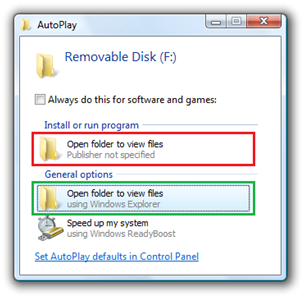
The action item with the red frame is a false option. The action item with the green frame is the correct option. To prevent spreading of malware in this way, Microsoft has made the decision to block some functionality in the Autorun technology in Windows 7 when using it with USB flash drives and other non-optical removable media. The Autorun technology will only be fully supported with optical media as a CD or DVD. Is there no way in Windows 7 to autorun a program on a USB flash drive? There is no general way to automatically run a program on a USB Flash drive in a Windows 7 system, or add an option to the AutoPlay dialog box; but in some circumstances one of the following techniques can be used: - Use a U3 smart drive (or similar). These USB drives have a built-in firmware that presents them as CD drive when they are inserted into a computer. These kinds of USB flash drives are not affected by the changes in Windows 7. Autorun will work as it was a CD. U3 smart drives are primarily used to run programs directly from the USB flash drive and are generally not used to install programs. If you only need to run a program locally, and don't need to install, a U3 smart drive can be an option. But if you need to install files or update settings in the operating system (for example in the Registry) a U3 smart drive can not be used. The basic idea of U3 technology is that when the drive is removed from the host computer, there should be no traces left in that computer. - Create program code that scans for USB sticks inserted in USB ports. If it is very important to automatically run a program on a USB stick, you can create program code that waits for new drive letters to appear and if the new drive is a USB flash drive, you run the program on the drive. The program can be the program file specified by the OPEN command in the Autorun.inf file, or another program file. This solution requires of course that the scanning program is installed on a computer in first place, but if you have a program that co-operates with USB sticks this can be done in a natural way during the installation of that program. - Use a ready-to-use program or component that scans for USB sticks in USB ports. Instead of developing a program or component (as described above) by yourself, you can use third-party software that does the same thing. For example, our product SamLogic USB AutoRun Creator can give AutoRun capabilities to USB flash drives that are used in Windows 7 systems. SamLogic USB AutoRun Creator works also with Windows XP and Windows Vista. An alternative method to start a program in Windows 7 If none of the methods mentioned above is suitable for your needs, you can instead give the user clear instructions of how to manually start the program on the USB flash drive from Windows Explorer, if he uses Windows 7. An option to start Windows Explorer will always be shown in the AutoPlay dialog box when a USB stick is inserted in a USB port. You should also place the program file in the root folder of the USB drive and give the program a descriptive filename such as "StartMe.exe" or "Autorun.exe" etc. Also make sure that no other program files (.EXE files) are located in the root folder because this can confuse the user. Other program files should be located in sub folders on the USB flash drive. But remember, many people are still using Windows XP or Windows Vista If you currently use AutoRun with USB sticks you should continue doing so because of the high proportion of people still using Windows XP or Windows Vista as the operating system on their computer. You should also add instructions in your documentation informing Windows 7 users how to start your program manually; the number of Windows 7 users will of course increase every year. You should also be aware of that it is also possible to download and install functionality to Windows XP and Windows Vista that blocks AutoRun in same way as in Windows 7. However, this requires that the user downloads and installs this changed functionality manually and most will not do so. It is also possible to turn off AutoRun and AutoPlay without this update from Microsoft and some users have already done so. But some features in the AutoRun technology will still be available for USB flash drives in Windows 7. You can still change the drive label and icon by using the Autorun.inf file (the LABEL and ICON commands are still supported). More details can be read in this article. Some thoughts about USB flash drives and security  The
removal of some AutoRun functions in Windows 7 will reduce the spreading
of malware via USB flash drives, but the risk of infection still exists
as USB flash drives can still get infected without AutoRun. One way you
can help reduce the risks is by using USB flash drives with mechanical
write protection when there is no need to write data to the USB flash
drive. By using mechanical write protection, harmful programs are unable
to infect the USB flash drive and can not use it to infect other
computers. The
removal of some AutoRun functions in Windows 7 will reduce the spreading
of malware via USB flash drives, but the risk of infection still exists
as USB flash drives can still get infected without AutoRun. One way you
can help reduce the risks is by using USB flash drives with mechanical
write protection when there is no need to write data to the USB flash
drive. By using mechanical write protection, harmful programs are unable
to infect the USB flash drive and can not use it to infect other
computers.
Related products: SamLogic CD-Menu Creator SamLogic USB AutoRun Creator Other articles More articles are available from the article index page. |
 |



| Article written by: Mika Larramo | Spanish |