|








 How to install a Windows Store app in Windows 8  In
this article on
our web site we explained how to install a Windows Desktop app (desktop
application) in a
Microsoft Windows 8 system. In this article we will discuss how to
install a Windows Store app in Windows 8. In
this article on
our web site we explained how to install a Windows Desktop app (desktop
application) in a
Microsoft Windows 8 system. In this article we will discuss how to
install a Windows Store app in Windows 8.Installation of a Windows Store app A Windows Store app (former "Metro-style app") is a new type of application that only runs on Windows 8. They can not be installed using traditional installation techniques; a complete new technique is used to install a Windows Store app. One big difference compared to an installation of a desktop app (desktop application) is that no separate setup program / self-extractor need to be deployed with the setup package. In fact, it is not even possible to do that. Instead, you create a "passive" package that contains all necessary files to run the app, and that you submit to Windows Store. Users will download your app from the Windows Store as an app package, and Windows will use the information in the app package to install the app. Windows also handles the uninstallation of the app and make sure that all traces of the app are gone from the device after uninstallation. Windows take 100% care of the installation and uninstallation process. Always installed per-user Another difference compared to a desktop app installation is that a Windows Store app is always installed per-user basis. For a desktop app you can choose if you want to install the app per-machine or per-user, but a Windows Store app is always installed per-user. When an app is installed per-user, only the user that installed the app can access it. The Windows Store app package format (APPX format)
A Windows Store app package / APPX package contain these four main parts:
The image below shows what can be inside a created APPX package: 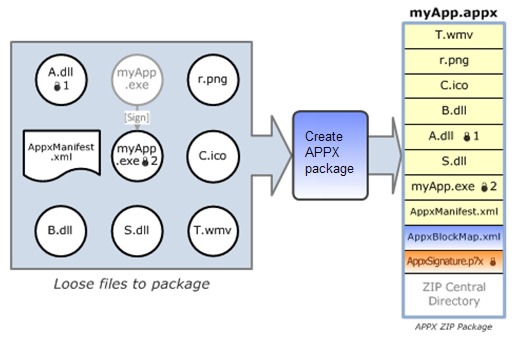 Declarative install The deployment and installation of a Windows Store app is an entirely declarative process that relies on the XML-based manifest in the app package. The manifest is used to specify the desired integration with the operating system. By using this method Windows will have full control over both the installation and uninstallation of the app, and will make sure that installation / uninstallation behaves in the same way in different Windows 8 devices. Where is a Windows Store app installed? A Windows Store app is always installed to the following folder: \Program Files\WindowsApps. The WindowsApps folder is hidden by default. And if you makes the folder visible you may notice that you don't have access to the folder (you will probably get a permission denied warning message). You can change the permission settings for the folder by following the steps described in the The 'WindowsApps' folder in Windows 8 article on our web site. Digitally signed  A
Windows Store app will always be digitally signed before it is deployed
to customers (if it is uploaded to Windows Store). You don't need to sign your app yourself; instead Windows
Store will sign your app with a certificate containing your registered
developer name. The signing process will occur when you upload your APPX package to Windows Store.
The
digital signature / digital certificate assures that the app has not
been changed in any way after deployment to Windows Store. A
Windows Store app will always be digitally signed before it is deployed
to customers (if it is uploaded to Windows Store). You don't need to sign your app yourself; instead Windows
Store will sign your app with a certificate containing your registered
developer name. The signing process will occur when you upload your APPX package to Windows Store.
The
digital signature / digital certificate assures that the app has not
been changed in any way after deployment to Windows Store.You can also sign your app package manually, on your own. This may be necessary when you test your app or create apps for Enterprise use. Signing can be made via Visual Studio or by using standard tools for signing (for example the SignTool tool from Microsoft). An app can not be installed if it is not digitally signed and the signature validated. So this is a compulsory step. How to create an APPX package  You can create an APPX package (Windows
Store app package) by using the Create App Packages wizard in
Visual Studio. Detailed information about how to use the wizard can be
found on the
Creating an app package web page on MSDN. An APPX package can also
be created by using a separate tool: App packager (MakeAppx.exe).
Instructions on how to use this tool is available on the
App packager (MakeAppx.exe) web page on MSDN. You can create an APPX package (Windows
Store app package) by using the Create App Packages wizard in
Visual Studio. Detailed information about how to use the wizard can be
found on the
Creating an app package web page on MSDN. An APPX package can also
be created by using a separate tool: App packager (MakeAppx.exe).
Instructions on how to use this tool is available on the
App packager (MakeAppx.exe) web page on MSDN.

Other articles More articles are available from the article index page. |
 |



| Article written by: Mika Larramo |