|
New
features and
enhancements in SamLogic Visual Installer 2025 |
Below you find a list of
some new features that have been added to the new SamLogic Visual
Installer 2025:
|
-
 A
new column has been added to Visual Installer's file list in
the File list tab. In this new column you can see if
a binary file is code signed (digitally signed) or
not. This gives you an easy way to check and make sure that files that
must be digitally signed really are. A
new column has been added to Visual Installer's file list in
the File list tab. In this new column you can see if
a binary file is code signed (digitally signed) or
not. This gives you an easy way to check and make sure that files that
must be digitally signed really are.
-
Visual Installer can now handle more than one code
signing certificate (digital certificate) in the same
computer. You can choose which digital certificate to use
for your installation package.
-
We have added a
multirow notes field to the File list tab in
Visual Installer. In the notes field you can enter
information and notes about your installation project. Via
an option in the editor you can choose if the notes field
should be visible or not in the tab.
-
You can now specify minimum memory requirements for
your installation. You can choose if Visual Installer only
should warn or if Visual Installer also should stop the
installation, if the memory requirements are not fulfilled.
-
The Windows
compatibility function for installed applications now
also support Windows 7 and Windows 8 (besides Windows XP
that is supported since before). With the Windows
compatibility function, old programs can be run in newer
Windows (like Windows 10 and Windows 11) without major
problems.
-
You can now
specify screen position for a not maximized
graphical setup window. You can for example place it at
the bottom right or bottom left of the screen. The graphical
setup window can be used to show pictures and other types of
graphic during an installation.
-
Support for the
latest versions of AutoCAD:
AutoCAD 2023 and
AutoCAD 2024. In
this
blog post you can read how AutoCAD from Autodesk is supported
by
Visual Installer.
-
The latest
versions of the Microsoft Office applications are supported.
-
We have now
included a French language file. So you can now add French
text to your setup packages in an easy way.
-
The max length
for source file paths for files in the file list has been
extended, so deep folder structures are handled better.
-
The version
number for a created self-extracting setup package can be
updated automatically.
-
Information from
previous versions of installed programs can be cleaned,
during an installation, if
it is needed.
|
|
New
features and
enhancements in SamLogic Visual Installer 2022 |
Below you find a list of some
features that were added to SamLogic Visual
Installer 2022:
|
-
 Supports
the new Windows 11. Installation options, the script
language etc. has been updated to support the latest version
of Microsoft Windows. Supports
the new Windows 11. Installation options, the script
language etc. has been updated to support the latest version
of Microsoft Windows.
-
Supports Visual Studio 2022 (Visual Basic 2022 and
Visual C# 2022).
-
If you add more
than one shortcut during an installation, you can now choose
which shortcut (icon) that is your main application and will
be more visible in the Start menu. This is most important in
Windows 11, where recently added shortcuts are featured in
an extra clear way, but also in older Windows this is of
importance.
Read more.
-
 All
binary files in Visual Installer 2022 (for example the
installer) has been code signed with a digital certificate
from the security company Sectigo. A key length of 4096 bit
is used for the RSA encryption to obtain maximal security.
You can read more about this in
this
blog post. All
binary files in Visual Installer 2022 (for example the
installer) has been code signed with a digital certificate
from the security company Sectigo. A key length of 4096 bit
is used for the RSA encryption to obtain maximal security.
You can read more about this in
this
blog post.
-
Support for the
latest versions of AutoCAD:
AutoCAD 2021 and
AutoCAD 2022. In
this
blog post you can read how AutoCAD from Autodesk is supported
by
Visual Installer.
-
New conditions
in the script language: IF ACCESS_INSTALLED and IF
EXCEL_INSTALLED. Instead of checking if Office is
installed, you can now check if Microsoft Access or
Microsoft Excel has been specifically installed.
Read more.
-
Three new script
commands that can be used to open documents and run programs
during an installation: SHOW, SHOW_AFTER and
RUN_AFTER. In this
blog post you can read more about these script commands.
-
We have added
new script commands for uninstallation of shortcuts. This
will give you more flexibility when you configure the
uninstallation settings for your programs.
-
Some
improvements in the editor. For example:
- Easier to select a program that must be run immediately
after the installation.
- Easier to change source path for a file in the File
list (you can now browse after the file).
- You can customize the editor interface even more than
before (for example change the style of the buttons).
-
We have added a
new variable:
%DATE_CREATED.
It contains the date when the installation package was
created.
-
The installer
now displays the filename of every file that is registered
during the registration process. If you have many files in
your file list that need to be registered it may take some
time in some computers, but by displaying the filenames one by one, the user
can see that the installation still proceeds.
Read more.
-
You can now
specify a minimum size in pixels for your installation
window. This assures that the window is not too small in a
computer with a low screen resolution.
-
There is now an
Enterprise version of Visual Installer available,
with even more functions. You can for example set default
settings to project files and have easier access to
documentation, tips and updates directly from the program.
Read more.
|
|
New
features and
enhancements in SamLogic Visual Installer 2020 |
Below you find a list of some
features that were added to SamLogic Visual
Installer 2020:
|
-
Support
for the latest version of Windows 10.
-
Support for
the latest versions of .NET Framework:
Microsoft .NET Framework 4.7.2 and
4.8.
-
 Support for the
latest versions of AutoCAD:
AutoCAD 2019 and
AutoCAD 2020. Support for the
latest versions of AutoCAD:
AutoCAD 2019 and
AutoCAD 2020.
-
Support for Visual Basic 2019.
-
Support for Visual C#. Visual Installer can now
import Visual C# projects and create installation projects
for your software. All version since 2005 (including the
latest 2019) are supported.
-
You can now add
comments to files in Visual Installer's file list. They are
saved with your project file.
-
Updated
Registration dialog box. You can now include additional
input fields for region/state and ZIP/postal code in the
this dialog box. Corresponding variables has also been added
to Visual Installer.
-
Updated Run
program after installation function. The user can now
decide via a check box in the Installation completed
dialog box if the program file(s) should be run or not. It
works in the same way as the Show document after
installation function today.
-
You can now add
your own picture to the uninstallation program /
uninstallation dialog box. You can also choose one of the
built-in setup pictures that follow Visual Installer.
-
A
new script command has been added to Visual Installer's
script language: RDELETE. With this script command
you can delay a file deletion to reboot (computer restart).
|
|
New
features and
enhancements in SamLogic Visual Installer 2018 |
Below you find a list of some
features that were added to SamLogic Visual
Installer 2018:
|
-
Support
for the latest Windows 10: Windows 10 Fall Creators
Update. Windows is constantly evolving and changing, and
we regular update Visual Installer to handle these changes.
-
 Support for
the latest .NET Framework:
Microsoft .NET Framework 4.7 and
4.7.1. Support for
the latest .NET Framework:
Microsoft .NET Framework 4.7 and
4.7.1.
-
Support for the
latest AutoCAD:
AutoCAD 2018.
-
A new function has been added to the editor that allows you
to add all files in a folder to Visual Installer's
file list in an easy way.
-
The User Options setup dialog box has been updated to
also support radio buttons. So you can now choose if you
want to use check boxes or radio buttons in the dialog box.
When you use radio buttons, only one option at a time can be
selected.
Read more.
-
The code signing
function in Visual Installer has been updated to also
support USB tokens (hardware tokens) and EV digital
certificates.
Read more.
-
All binary files
that are distributed to end-users are now code signed with
an
EV digital certificate. This improves the security and
reduces the risk for warning messages in Windows.
-
Two new script
commands for shortcuts: RENAMEICON and
RENAMEICON_DESKTOP. These two commands can be used to
change name and description text of existing shortcuts.
-
EXIT_SCRIPT
is a new script command that can be used to stop the
execution of script lines, without stopping the
installation. Combined with an IF condition, this
command allows you to halt the execution of script lines in
an easy way.
-
The XRUN
script command has been extended to handle two more
parameters: %OS and %Bitness. These two parameters allows you to specify
in which Windows version and Windows bitness the program file that XRUN
starts can be run in.
Read more.
-
You can now
change font for Visual Installer's editor if you want to use another font
than the standard font. Different fonts are optimized for
different screen resolutions and Windows versions, and you
have now the opportunity to choose a font that is optimized
for your system.
Read more.
|
|
New
features and
enhancements in SamLogic Visual Installer 2017 |
Below you find a list of some
features that were added to SamLogic Visual
Installer 2017:
|
-
 The
support for the Microsoft Windows 10 operating system
has been improved. Both Windows 10 Anniversary Update
and Windows 10 Creators Update are fully supported in
the new version of Visual Installer. The
support for the Microsoft Windows 10 operating system
has been improved. Both Windows 10 Anniversary Update
and Windows 10 Creators Update are fully supported in
the new version of Visual Installer.
-
Supports
Visual Basic 2017 / Visual Studio 2017.
-
Supports
AutoCAD 2017.
-
 Supports
Microsoft .NET Framework 4.6.2. Supports
Microsoft .NET Framework 4.6.2.
-
Supports
Microsoft Edge.
-
Improved
functions for license keys.
-
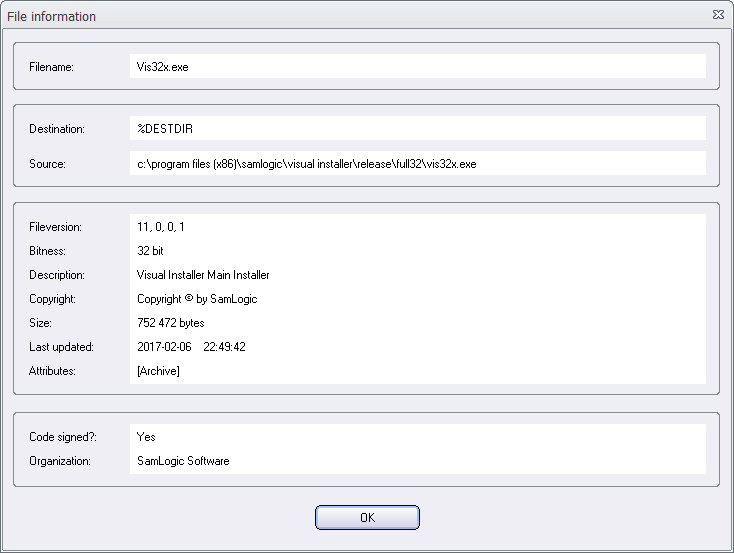
You can now see
in Visual Installer's editor if a file in the file list is
code signed or not. The file information window has been
updated to also display information about digital
certificates. We have also updated the design of the window.
Read more.
-
You can now
include line breaks in texts that are displayed in
information windows and message boxes that are opened via
Visual Installer's
script language. This make long texts easier to read.
Read more.
-
You can specify
your own default folder for your Visual Installer project
files (.VIP files). Normally is the Documents\Visual
Installer\My Projects folder used as a default folder
for project files, but now you can have your own default
folder; for example: D:\My VIP Projects.
Read more.
-
The Add tree
function in Visual Installer's editor has been updated so
you now also can add a pure folder tree without any files.
This is useful if the files in the folder tree are created
afterwards, by your software.
-
A log function
has been added to Visual Installer's script language. You
can now get a detailed log of the execution of the script
lines during an installation.
-
New conditions
that check if Microsoft Office is installed and that check
which bitness the installed Office has, has been added to
Visual Installer´s script language.
-
All binary files
that are included in Visual Installer 2017 (for example the
installer) are code signed
using a SHA-2 certificate. It is strongly recommended to use
SHA-2
for binary files that are distributed in February 2017 and
thereafter. The
security will be improved and the risk for annoying warning
messages in Windows is reduced.
|
|
New
features and
enhancements in SamLogic Visual Installer 2015 |
Below you find a list of some
features that were added to SamLogic Visual
Installer 2015:
|
-
Supports
Microsoft
Windows 10. Visual Installer 2015 has been adapted to
function with the
new Windows 10 operating system. Both the editor and the
created setup programs can be used in Microsoft Windows 10.
Conditions in the scripting language and OS checks etc. has
been updated to also support Windows 10.
-
Supports
Visual Basic 2015 / Visual Studio 2015.
-
Supports
Microsoft Office 2016 and
Office 365. For example the Office variables
now work with the latest Office version. And an Excel Add-In
can also be added to Excel 2016.
-
Updated support
for AutoCAD profiles. Visual Installer handles now
also AutoCAD 2015 and AutoCAD 2016.
-
Improved support
for Microsoft .NET Framework. Now are also sub
versions of .NET Framework supported (for example version
4.5.1, 4.5.2 etc.). And you can let Visual Installer
download and install a specific version of .NET Framework,
if it is missing in the end-user's computer.
Read more.
-
 You can now install both 32 bit and 64 bit files from the
same installation package.
Read more. You can now install both 32 bit and 64 bit files from the
same installation package.
Read more.
-
It is now
possible to include a clickable e-mail address and web
address in Visual Installer's setup dialog boxes. So you can
now for example include a link to your web site in any of
the installation dialog boxes in Visual Installer.
Read more.
-
Visual Installer
now supports automatic creation of setup packages and batch
handling. You can now automate creation of setup packages
and build an installation without any user interaction. This
allow you to call Visual Installer from a build server to
build a setup package automatically.
Read more.
-
Visual Studio's
solution files (.sln files) are now supported. This
allows you to import more than one Visual Basic project at
once to Visual Installer.
Read more.
-
A new setup
dialog box has been added to Visual Installer's setup
wizard: User Options. It's a general option dialog
box where the user can select and unselect options that you
have created and added to the installation project. These
options co-operates with condition statements in Visual
Installer’s scripting language and Visual Installer’s
Registry tab.
Read more.
-
Five new
variables that handles system folders and license keys have
been added:
n
%SYSDIR32
- Install the file to the 32 bit system folder.
n
%SYSDIR64
- Install the file to the 64 bit system folder.
n
%PROGRAMFILES32
- Install the file to the 32 bit program files folder.
n
%PROGRAMFILES64
- Install the file to the 64 bit program files folder.
n
%ENTEREDLKEYPREFIX
- Contains the prefix of a license key that the user has
entered.
-
Three new commands
have been added to Visual Installer's scripting language:
n
MWRITEPROTECT - Write protects or removes write
protection for a selection of files in a specified folder.
n
DELETEICON_DESKTOP - Removes a shortcut from the
desktop.
n
SETENV - Sets an environment variable to a specified
value.
-
Visual
Installer's scripting language now supports ELSE.
Read more.
-
A new special
command has been added to the Registry tab:
XPCOMPAT. Sets a program to be run in compatibility mode
for Windows XP in Windows Vista/7/8/10. This command is
useful if you have a legacy program that you want to run in
a newer version of Windows, and you have some compatibility
issues.
-
The Registry
tab and INI files tab in Visual Installer's editor
now support Windows environment variables.
An environment variable can be expanded in the same way as a
Visual Installer variable during the installation process.
Read more.
-
Improved code
signing functions. Visual Installer now supports SHA-2 and
dual code signing (SHA-1 + SHA-2).
Read more.
-
Improved support
for installation and uninstallation of Excel Add-Ins.
-
Improved
handling of license keys.
-
Updated support for
Twitter. Read more about Visual Installer´s Twitter
support
on this page.
|
|
New
features and
enhancements in SamLogic Visual Installer 2014 |
Below you find a list of some
features that were added to SamLogic Visual
Installer 2014:
|
-
 Support for
Microsoft Windows 8.1. Visual Installer 2014 has been adapted to
function with the Windows 8.1 operating system. Support for
Microsoft Windows 8.1. Visual Installer 2014 has been adapted to
function with the Windows 8.1 operating system.
-
Support for .NET Framework 4.5. If you develop applications that
require .NET 4.5, you can let Visual Installer check
that the computer really has. NET 4.5 installed before you
start installing your programs. Script conditions for .NET
4.5 are also included in Visual Installer 2014.
-
Support for
Visual Basic 2013 / Visual Studio 2013.
-
Support for
Microsoft Office 2013. For example the Office variables
now work with Office 2013.
-
Updated support
for AutoCAD profiles. Visual Installer handles now
also AutoCAD 2012 and AutoCAD 2014.
-
You can now specify in an easy way if an installed program
must be run with administrator privileges.
-
You can now
change permissions for a hard disk folder during the setup.
Two new script commands, SETPERM and XCREATEDIR,
can be used to handle this in a flexible way.
Read more.
-
MSIEXEC
is a new script command that can be used to start MSI
installations from Visual Installer.
Read more.
-
We have added
two useful script commands that are called during an
uninstallation: UNINSTALL_XRUN and
UNINSTALL_MSIEXEC. The first script command runs a
program during the uninstallation process and the second
script command runs an MSI uninstallation during the
uninstallation process.
-
New conditions
have been added to the script language. One condition can be
used to test if a system is 32 bit or 64 bit. Another
condition can be used to test if a program already has been
installed or not.
Read more.
-
Three new
variables that handles shared files
and shared settings have been added:
%SHAREDDOCUMENTS
- Destination folder for shared documents.
%PUBLICDIR -
Destination folder for shared files (documents, images,
videos, sound etc).
%APPDATADIR_ALLUSERS -
Destination folder for shared settings.
-
Support for
Twitter. You can now send messages (tweets) to Twitter
from Visual Installer.
Read more.
-
You can now add
version information to a self-extracting setup package. The
version information can been seen in for example Windows
Explorer and other places in Windows. Read more in
this blog post.
-
You can now
register a .NET assembly from Visual Installer.
Read more.
-
Improved
Create setup package dialog box. For example, now it is
easier to create a setup file on a USB flash drive.
-
We have now
included a German language file. So you can now add German
text to your setup packages in an easy way.
-
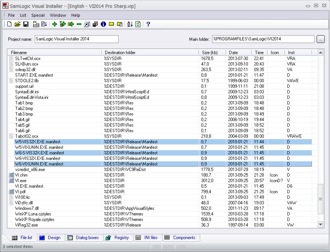
The user
interface of the Visual Installer editor has been updated.
We have also added more visual themes for the user
interface, so you can choose which user interface style you
prefer to work with.
Read more.
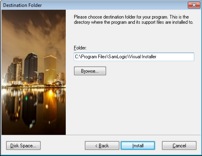
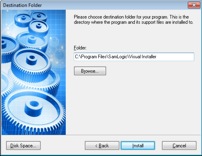
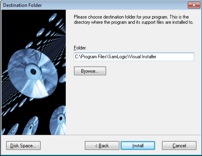
-
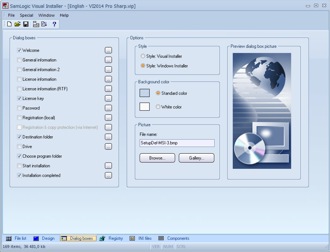
More
pictures for the setup dialog boxes has been included. You
can use them for your installation projects. But just as
before, you can also use your own pictures for the setup
dialog boxes (in the setup wizard).
Read more.
|
|
New
features and
enhancements in SamLogic Visual Installer 2012 |
Below you find a list of some
features that were added to SamLogic Visual
Installer 2012:
|
-
 Support for
Microsoft Windows 8. Visual Installer 2012 has been adapted to
function with the Windows 8 operating system. Support for
Microsoft Windows 8. Visual Installer 2012 has been adapted to
function with the Windows 8 operating system.
-
Support for
Microsoft Office 2010. For example the Office variables
now work with Office 2010.
-
Support for .NET
Framework 4.0.
-
 Support for
Visual Basic / Visual Studio 2010 and
2012. Support for
Visual Basic / Visual Studio 2010 and
2012.
-
Compatible with
TeamViewer. SamLogic Visual Installer 2012 is fully
compatible with the remote control / desktop sharing system
TeamViewer.
-
Updated support
for AutoCAD profiles. Visual Installer handles now
also AutoCAD 2010 and 2011.
-
You can now
create submenus (subgroups) for shortcuts / icons in an
easy way (without using script). In a submenu you can for example place documents
and special programs.
Read more.
-
You can now add
support information, and your own icon, to the Add /
Remove Program list in Windows Control Panel.
-
Improved
handling of updates. Special update keys can be specified.
When an update with an update key is used, the installation
will only continue if there is already a full version of the
program installed in the computer.
-
Visual Installer
can show visually when the user enters correct license key
in a setup dialog box.
Read more.
-
Improved
handling of setup windows. Now it is easier to choose if an installation should have a graphical
setup window (background window) that covers the whole
screen, part of the screen or is not used at all (only setup
dialog boxes will be shown during the
installation).
Read more.
-
New variable:
%JULIANDAY.
Returns today's Julian day number.
-
More intelligent
Run program after installation functionality. You can
now tell Visual Installer to only start a program if it not
is running in the system. This new functionality helps you
avoid that multiple instances of the same program is running
in the memory.
-
Two new script
commands: UNINSTALL_DELETE_AT_REEBOT and
UNINSTALL_REMOVEDIR_AT_REBOOT. Deletes a file and a
folder during system restart when a program is uninstalled.
This will help to uninstall files that are locked (in use)
when an uninstallation process needs to be done.
|
|
New
features and
enhancements in SamLogic Visual Installer 2010 |
Below you find a list of some
features that were added to SamLogic Visual
Installer 2010:
|
-
Support for
Microsoft
Windows 7. Visual Installer 2010 has been adapted to the
Windows 7 operating system.
-
Support for
64 bits. The sale of 64-bit computers, and 64-bit
Windows, are expected to increase sharply in the coming
years. Visual Installer 2010 has been adapted for use in
64-bit Windows (Windows XP / Vista / 7).
-
Code signing of
setup program. Important installation files are now
code-signed and you can also sign your own installations if
you have a certificate. By code-signing your installation
package your user's will not get any warning boxes when
installations are downloaded from the Internet. Code signed
setup programs can also be more easy installed in Windows 7
systems that has AppLocker
activated.
Read more.
-
Many stylish
ready-to-use images for setup dialog boxes are included now
and you can very easy choose one of them to your dialog
boxes. You can also choose your own images to the dialog boxes.
Read more.
-
The script
editor (the editor where you type script commands) shows now
commands and variables with different colors (so-called
syntax color handling). In this way you will get a better
overview of the commands and variables you use in script
lines. The script editor also supports IntelliSense
(using the same principle as in the Visual Studio editor),
which means you can get a list of possible commands and
variables as you type, and you can quickly and easily choose
a command or a variable.
Read more.
-
The Registry
and INI files tabs also handle syntax coloring and
IntelliSense as described above.
Read more.
-
You can now
preview the settings you entered in the Registry tab.
Your keys and values are displayed in a graphical tree, in
the same way as in the Windows Registry editor.
Read more.
-
Support for.
NET Framework 3.5.
-
New features for
managing license keys. For example auto-formatting of
license keys when they are entered (the hyphen is
automatically inserted). You can also specify a default key
that is displayed as a suggestion in the dialog box for the
license key. Very useful when you distribute evaluation
versions etc.
-
New conditions
in the script language that now handles Windows 7. For
example
IF OS = Win7 which executes the script row(s) only if
the operating system is Windows 7.
-
New conditions
in the script language that supports. NET, for example:
IF NET = 2.0 which executes the script row(s) only if
.NET Framework 2.0 is installed.
-
New script
command:
UNINSTALL_RENAME_LOGFILE. If you install multiple
installations to the same folder on the hardisk this script
command is useful if you want to uninstall the installed
files via separate uninstall programs. The uninstaller
included in Visual Installer uses this log file to determine
which files to uninstall.
-
New variable:
%MYPICTURES.
Returns the path to the image folder in Windows. This
variable can be used when installing pictures to user's
harddisks.
-
The end user can
now install on a USB flash drive. Usage of USB storage is
increasingly common, and besides that you can distribute
your application via USB sticks, you can now also let your
end users install their files to a USB flash drive. This is
an option that can be turned on / off in Visual Installer.
-
Easier to find
previous projects. The six most recent use projects are
displayed in a submenu in the File menu.
-
A user's guide
in PDF format is included. A navigation tree and hyperlinks
in the text makes it's easy to navigate among the pages in
the manual. You can preview the user's guide by
clicking
here.
|
|
New
features and
enhancements in SamLogic Visual Installer 2008 |
Below you find a list of some
features that were added to Visual Installer 2008:
|
-
An installation
can, after it has been created, be uploaded automatically to
a server on the Internet. If you often upload your
installations to Internet sites, this new feature will be
helpful for you.
Read more.
-
An new
installation dialog box has been added. This dialog box asks
the user if he/she wants to create an additional shortcut
(icon) on the desktop, the Start menu or Programs menu root
level.
Read more.
-
You can now copy
items from one file list to another in a simple way via the
Windows Clipboard. If you for example want to add a file to
three file lists you can first add the file to the first
file list, after that you select the file and copy it to the
another file lists via Windows Clipboard. All the settings
that belongs to a file are included.
-
Support for
Visual Basic 2008.
-
Can now detect.
NET Framework 3.0.
-
The script
language can now handle IF conditions. For example,
different lines of scripts can be run in different versions
of Windows.
-
Five new script
commands have been added. Their names are:
XDIREXISTS:
checks if a folder exists
XNOTDIREXISTS:
checks if a folder does not exist
REG_KEYEXISTS:
checks if a key in the registry exists
REG_KEYNOTEXISTS:
checks if a key in the registry does not exist
MSGBOX:
show an information box
-
New variable:
%DESKTOPDIR.
Returns the folder path to the user's desktop in Windows.
-
Updated support
for AutoCAD profiles. Visual Installer handles now
also AutoCAD 2007, 2008 and 2009.
|
|
New
features and
enhancements in SamLogic Visual Installer 2007 |
Below you find a list of some
features that were added to Visual Installer 2007:
|
|
Adaptions to Windows
Vista:
-
The management
of shortcuts (icons) did not always work in Windows Vista
when Visual Installer 2006 or earlier were used. No
shortcuts were created. This is because the logic for
creating shortcuts changed in Windows Vista. Visual
Installer 2007 has been updated so it can create shortcuts
in Windows Vista without any problems.
-
All important
installation files are now distributed manifest files so the
files run with the required privileges in Windows Vista.
-
Visual Installer
2007 handles the Windows Resource Protection (WRP) system in
Windows Vista in a proper way.
-
If the
VirtualStore management was turned off in Windows Vista,
some functions in the Visual Installer 2006 editor (or
older) do not worked very well. The reason for this was that
Visual Installer does not had write access privileges to
certain folders (e.g. the Program Files folder) in
Windows Vista. Visual Installer 2007 now uses other folders
and will work also if the VirtualStore management is
turned off in Windows Vista.
-
A Windows
Vista option has been added to the Operating system
tab in the Setup options dialog box. This option can
be used to prevent installations that are specific to
Windows Vista to be run on older Windows.
-
Some visual
changes has been done to the editor to better interact with
the new graphical environment of Windows Vista. And the
dialog boxes in the setup program uses a design typical to
Windows Vista when run in this operating system.
-
The help
documentation is now compatible with Windows Vista. The HTML
format is used for the help.
Adaptions to
Microsoft Office 2007:
-
Installation of
add-ins can now be made for Microsoft Excel 2007 and
Microsoft PowerPoint 2007.
-
The variables
specific to Microsoft Office supports now Microsoft Office
2007. For example the variables that are used when templates
are installed.
Other news:
-
You can now
specify a minimum operating system for specific files in the
file list. You can for example specify that some files will
only be installed in Windows Vista, but not in Windows XP or
older.
-
The script
language has been extended with a new command: CMD.
This command gives access to all commands in the Windows
command prompt directly from Visual Installer.
-
Visual Installer
2007 has been adapted to function properly when Internet
Explorer 7.0 is installed in a computer. In a computer with
Internet Explorer 7.0 installed the text handling works in
different way which affected text that was placed on the
setup screen. Visual Installer 2007 has been updated to
handle this so the text is displayed as expected.
|