

How to create an INI file with settings in the main destination folder (Visual Installer)

With Visual Installer you can set initial settings for your application in different ways. One simple method is to store the settings in an INI file. INI files have existed since the first Windows version, and are still used today because they are simple to use and support all basic features for storage of settings that are needed.

In Visual Installer’s editor there is a dedicated tab that is used to handle data to INI files. The name of the tab is “INI files” and in the tab there are four buttons:

New file : Creates a new file.
Add section : Adds a section to the INI file.
Add value : Adds a value name and a value (for example a text string) to the INI file.
Variables : Shows a list of variables that can be inserted in the INI file.

To add/create a new INI file in your Visual Installer project, follow the steps below:

Step by step – How to add/create an INI file in your Visual Installer project

1. Open the “INI files” tab in Visual Installer’s editor.
2. Click the New file button in the “INI files” tab. The button is located in the bottom left.

The 'INI file' tab

3. Enter the filename of the INI file in the dialog box that is shown. E.g., “MySettings.ini“.

Create new INI file

4. Click OK.
5. A message box with a question is now shown, with the following text:
Do you want the INI file to be created in the main destination folder of the installation?
6. Answer Yes.
7. Now click the Add section button in the “INI files” tab.
8. Enter a section name. For example: “Directories“.

Add section to INI file

9. Click OK.
10. Now click the Add value button in the “INI files” tab.
11. Enter a value name and a value in the dialog box that is shown. For example:

Add value to INI file

12. Click OK.
13. The result, that is shown in the “INI files” tab, will look something like this:

INI file - Example

You have now created an INI file with some contents for your installation project. The INI file will be created in the main destination folder during the installation and the variables used in the INI file will be replaced with actual values when the INI file is created.

%DESTDIR that is used above is a variable that will be replaced with the installation’s main destination folder path during the installation. You can read more about %DESTDIR here.

How to set minimum memory requirements for an installation (Visual Installer)

You can now specify minimum memory requirements for an installation that you create with Visual Installer. You can choose if Visual Installer only should warn or if Visual Installer also should stop the installation, if the memory requirements are not fulfilled.

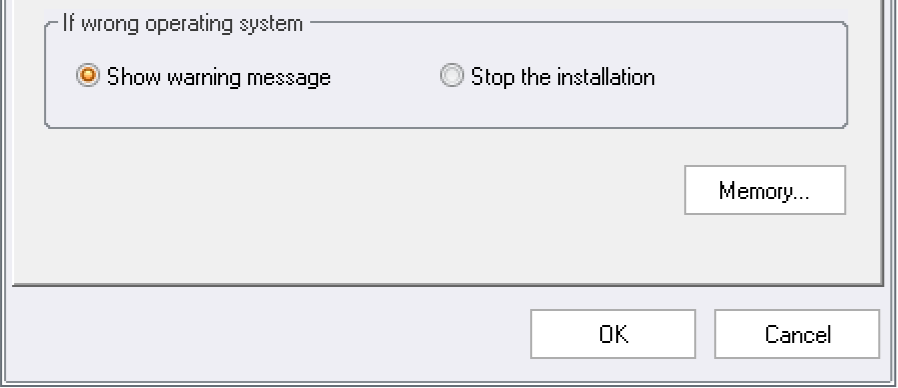
We have added new options to the Setup options dialog box that handles this. If you open the Operating System tab in the Setup options dialog box, you will find a new button (labeled “Memory“) in the bottom of the dialog box:

The 'Memory' button

If you click on this button, the following dialog box is shown:

The 'Memory' dialog box

Here you can activate the new memory function and also specify the minimum memory requirements (RAM memory) for the installation and your software.

This function is a new function in Visual Installer 2025.

How to add version information to a setup package (in Visual Installer)

One useful function in the Visual Installer setup package creator is the possibility to add version information to a self-extracting setup package. You can for example add version number, product name, company name and copyright text. The version information can be seen in Windows Explorer and in other places in Windows.

Where in Visual Installer can the version information be entered?
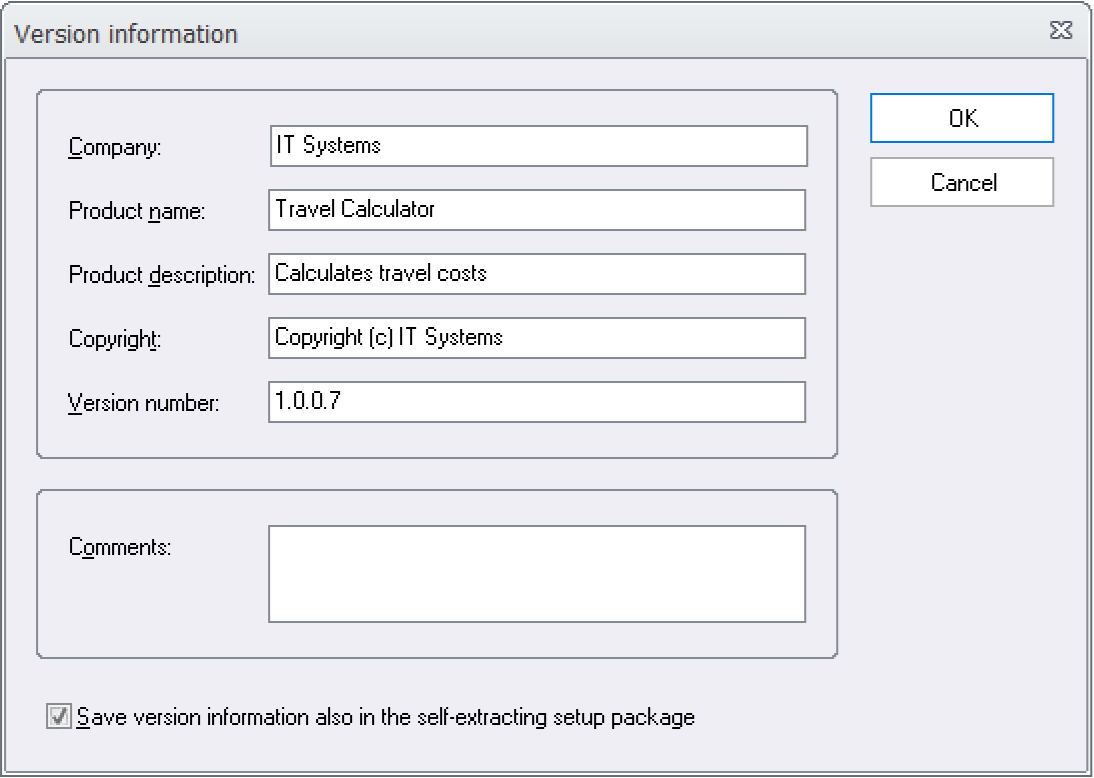
You can enter the version information in the Version information dialog box in Visual Installer. The dialog box can be opened via the Special – Version information menu item in the Visual Installer editor. The screen dump shows how the dialog box looks like:

The 'Version information' dialog box in Visual Installer

In this dialog box you can also find an option (a check box) with the text Save version information also in the self-extracting setup package and if you select this option, the version information that you enter in this dialog box will be stored in the setup package file. If the option is not selected, no version information will be stored in the setup package.

The version information can be viewed in Windows Explorer
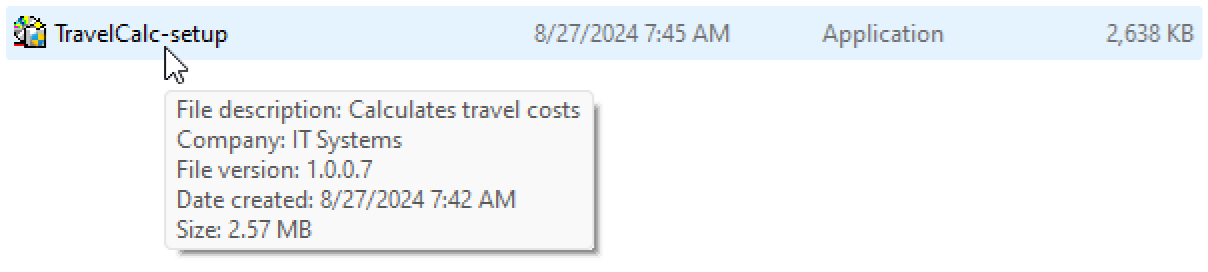
If you have chosen to add version information to the setup package, the information can be shown in Windows Explorer and other places in Windows. For example, when the mouse pointer is above the filename in Windows Explorer, a tip text with the version information is displayed (as shown in the picture below):

Tip text in Windows Explorer (with version information)

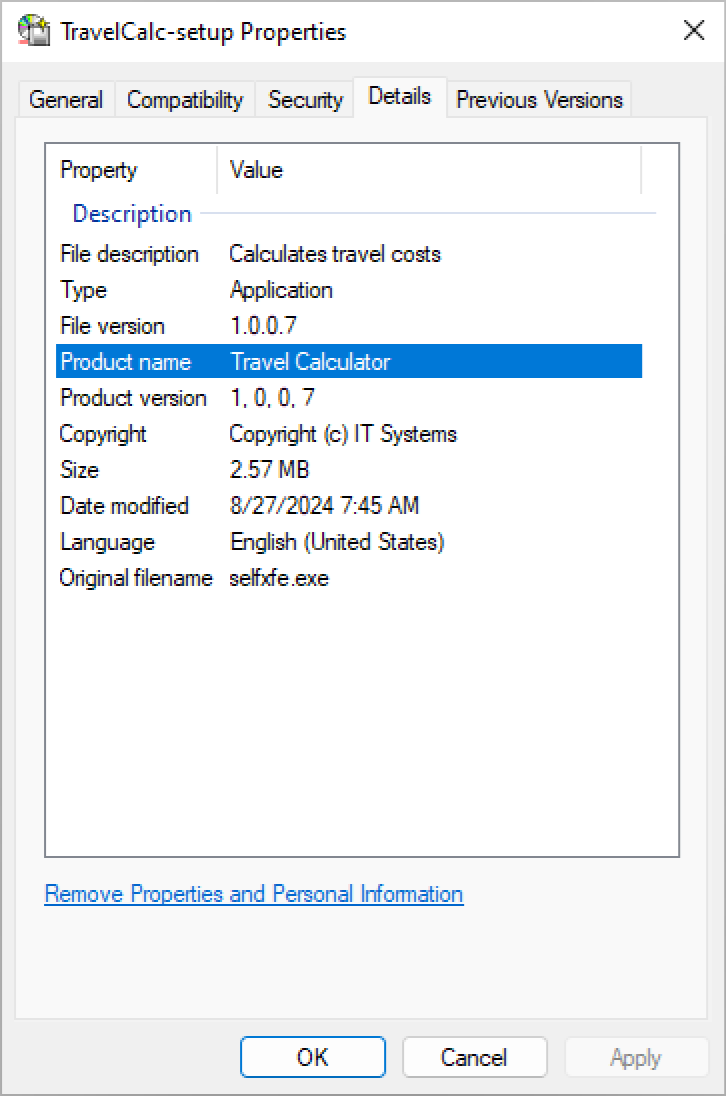
Also the Details tab in the Properties dialog box in Windows Explorer contains this information (the dialog box can be opened by right-clicking on the filename and choosing the Properties menu item). The picture below shows how the information is shown in the Details tab if the text that was entered in this blog post’s first picture is included in the setup package:

The 'Properties' dialog box in Windows Explorer

Version number
If you want to add a version number to the setup package, you must use 4 numbers when you specify the version number; for example: 1.2.0.5. Both commas and semicolons are allowed to use as a delimiter. So it is also ok to enter the version number like this: 1,2,0,5.

If you use more than or less than 4 numbers for the version number (for example 1.2) the version number is not stored in the setup package. If you want a version number like this to be stored in the setup package, you can extend the version number with zeros and enter the version number in this way: 1.2.0.0.

Read also
> How to create a self-extracting setup package

How to change registration order of files during an installation with Visual Installer

Sometimes files need to be registered in the system during an installation. They need to be registered so they can be located by software and to function properly. In our installation tool Visual Installer we have built-in functions that do this registration process.

When you install files the files are normally registered in the order that they appear in Visual Installer’s file list. But sometimes this may create a problem, if one file is dependent of another file, and they are registered in the wrong order. To handle a situation like this there is an option in Visual Installer that allows you to register files in a particular order.

How to change registration order of files
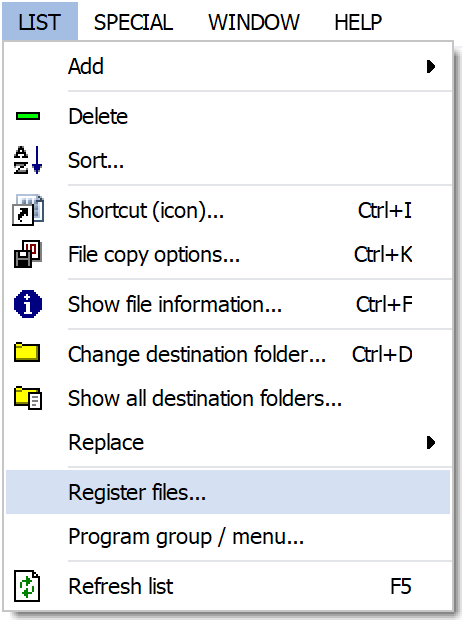
To change the registration order of a couple of files, you can first choose the Register files menu item in the List menu in Visual Installer.

The 'List' menu and 'Register files' menu item

The Register files dialog box is now shown (see the picture below). In this dialog box you can specify the registration order by entering one file path per line. Each line must contain an installation path to every file that you want to have registered in another order than the default order. You can use variables in the file path (for example: %SYSDIR\MyDLL1.dll).

The 'Register files' dialog box

Line number 1 is registered first. Then line number 2. Then line 3. Thereafter line 4. Etc.

All files that you specify in the Register files dialog box are registered before any file in the file list is registered. So the list in Register files dialog box is handled first.

More information
Additional information is available in Visual Installer’s Help documentation. Click on the Help button in the Register files dialog box to obtain more information.

More tips
More tips for Visual Installer are available on this web page.

How to add more files from a previously used folder (in Visual Installer)

I guess that you sometimes when using Visual Installer are in the situation that you need to add more files from a source folder that already has been used in Visual Installer’s file list. Browsing to the same source folder again can be time consuming when using the “usual” way.

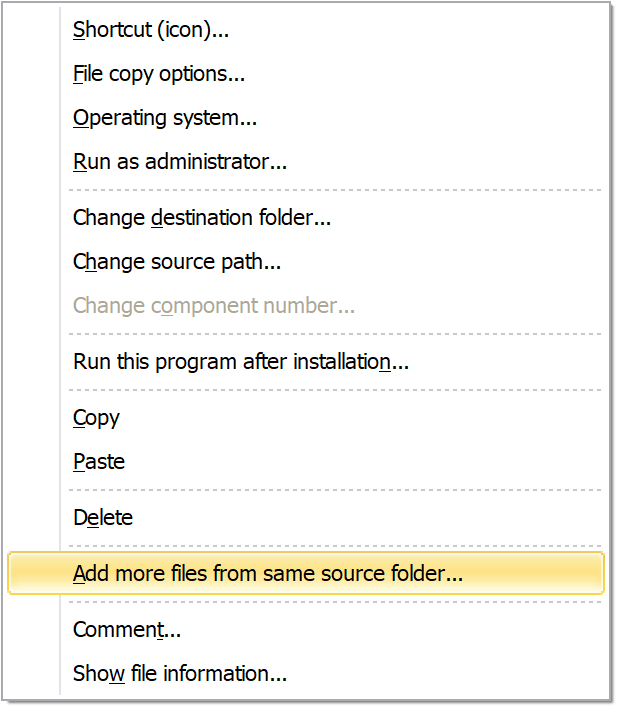
To simplify and speed up this process you can instead use a menu item in the local (right-click) menu in the File list tab in Visual Installer. The name of the menu item is Add more files from same source folder and the picture below shows where in the menu you can find this choice:

Add more files from same source folder

If you right-click on a file in Visual Installer’s file list and thereafter choose the Add more files from same source folder menu item, the Add files dialog box in Visual Installer will be opened with all files in the same source folder as the selected file listed. Via this dialog box you can add more files from this source folder to Visual Installer’s file list.

See also
> Using the Add tree function in Visual Installer
> How to view source paths in the file list in Visual Installer

The best way to open an Excel File from a menu

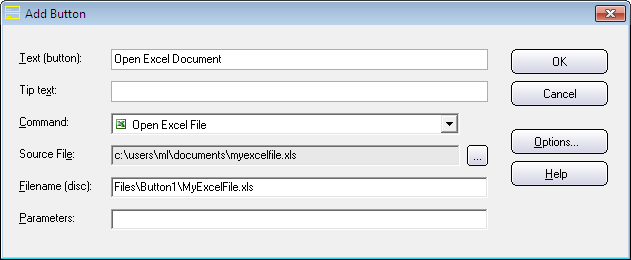
You can open different kinds of document types from buttons in menu interfaces created with the CD-Menu Creator and USB Menu Creator tools. One document type that can be opened are Excel documents, and if you choose the menu command Open Excel File (see the picture below) you will get access to some special functionality that can be useful when handling Excel files. You can for example send command line parameters (switches) to Excel.

Open Excel File

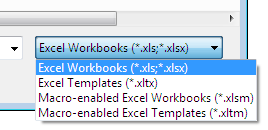
With the Open Excel File command you can open the following types of Excel files: .XLS, .XLSX, .XLTX, .XLSM, and .XLTM.

You can open different kind of Excel files with the button command

By entering command line switches in the Parameters text box in CD-Menu Creator / USB Menu Creator, you can control how Excel files are opened in Microsoft Excel. For example, if you enter /r in the Parameters text box, the Excel file is opened in read-only mode.

Read more about available command line switches for Excel here:

> Command-line switches for Excel (opens a page on Microsoft’s website)

See also
> How to open a PDF document from a menu
> CD-Menu Creator’s button commands explained

Create your own Christmas e-card with MultiMailer

Christmas e-cards

Christmas is fast approaching and it’s time to send Christmas cards to friends, acquaintances, customers and other contacts.

With our e-mail newsletter tool MultiMailer, you can both create your own Christmas e-cards and send them easily as e-mails. You can create your Christmas e-card either by using ready-to use e-card templates/examples or by using MultiMailer’s built-in visual e-card wizard. Read more in this blog post:

> Create your own Christmas e-card with MultiMailer

How to create button groups with titles in a menu

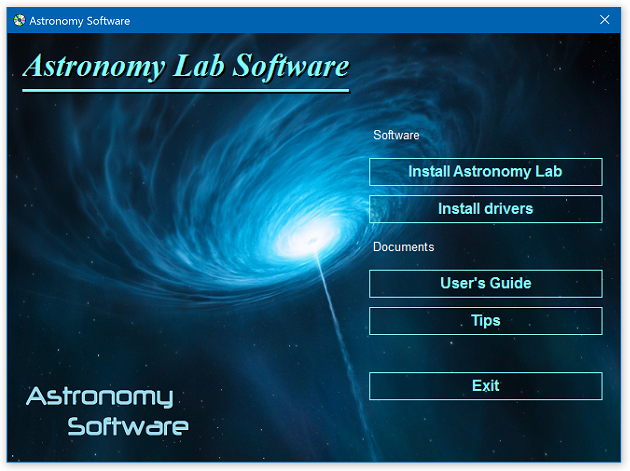
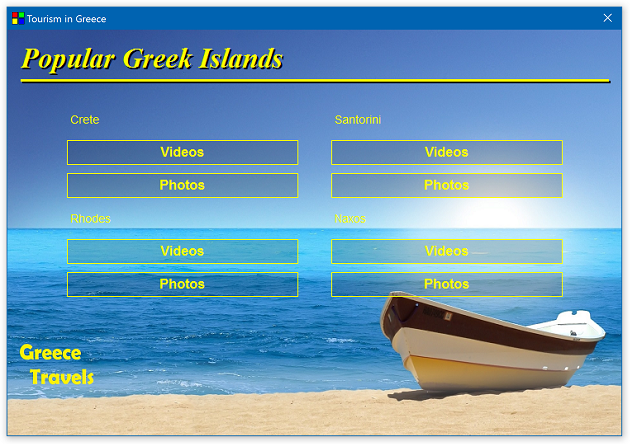
In the menu creation tools CD-Menu Creator and USB Menu Creator there is a function you can use to place buttons in groups and add a title to each group. If you have many buttons in a menu this will help your user find the correct button faster. Below are two menu examples that show how it may look like:

Example 1: One column with buttons + two groups with buttons + Exit button
Menu example 1

Example 2: Two columns with buttons + four groups with buttons
Menu example 2

It is easy to create button groups and add titles to the groups. In this step by step tip on our website we will describe how to create button groups with titles.

See also
> How to handle menu interfaces with many buttons

How to see if a file in Visual Installer’s file list is code signed

Today it is very important to code sign binary files (for example .EXE and .DLL files) that are distributed to other computers. By code signing your files you will protect your files against viruses and malware and avoid deterrent warning messages in Windows.

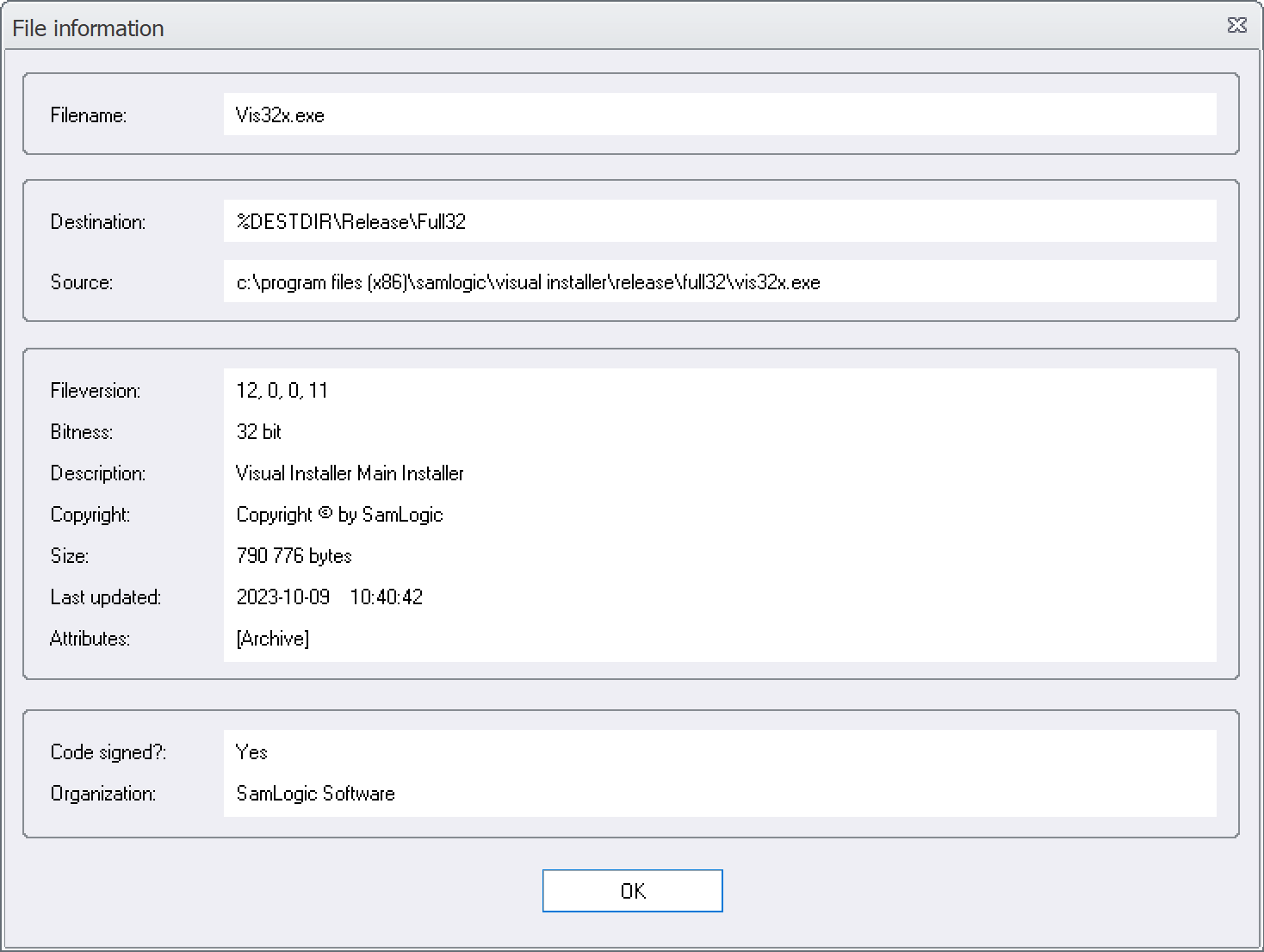
In our setup tool Visual Installer it is easy to check if a file in Visual Installer’s file list is code signed or not. You can check if a file is code signed by right-clicking on the file in the list with files in the File list tab in Visual Installer’s editor, and thereafter choosing the Show file information menu item in the menu that appears. The following dialog box will be shown:

The 'File information' window in Visual Installer

To the right of the Code signed? text field there will be a Yes if the file is code signed (has a digital certificate). Otherwise the text will be No.

The name of the organization that the digital certificate is issued to is displayed to the right of the Organization text field in the same frame.

See also
> Tip: How to code sign a setup package in Visual Installer
> What is Code Signing / Digital Signature / Digital Certificate?
> Extended Validation (EV) Code Signing
> SamLogic uses a digital certificate from Sectigo for its software

How to change font for Visual Installer’s and CD-Menu Creator’s editor

Using one and the same font in a software with all versions of Windows, graphic cards, displays and DPI settings, and expecting the result always to be perfect, is nearly an impossible mission. And then you must also take into account that people also prefer different fonts.

FontsIn Visual Installer and CD-Menu Creator (our tools for creation of installation packages and menu interfaces) you can change the font for the editor. We have included a couple of fonts that you can choose among, so you have the possibility to choose a font that suits your system best.

Too large font size?
If you have problem with a too large font size in the editor – so large that all letters is not visible because they not fit in the reserved text area – you can try to change the font for the editor. This may solve the problem.

How to change the font for the text in the editor
In Visual Installer you can change the font by choosing the Editor options menu item in the Special menu – and then opening the Font tab in the dialog box. In CD-Menu Creator you can change the font by choosing the Options menu item in the File menu – and then opening the Appearance tab in the dialog box. Via these tabs you can change the font for the editor.

See also
> How to change font size for the tip text in a menu